
Google Workspace Marketplace


Carbon Voice
Use your Carbon Voice memos while writing emails in Gmail™: paste transcriptions and shareable links. Easily create new async meetings; preview links with smart chips.
דף האפליקציה עודכן בתאריך:21 בדצמבר 2025
האפליקציה פועלת עם:




אין ביקורות
231



סקירה כללית
In Gmail™ and Google Calendar™:
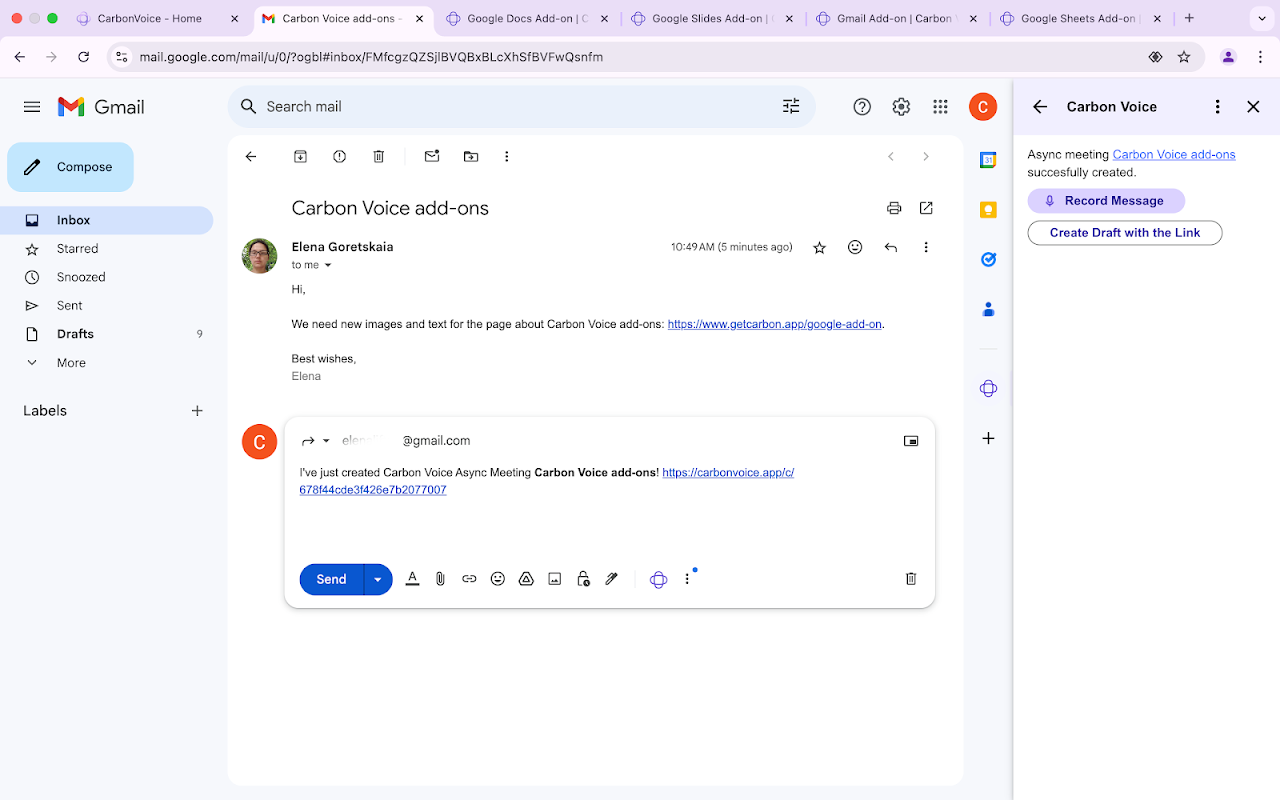
● To create a new Carbon Voice asynchronous meeting, open any email in your inbox or open any event in your Google Calendar™ and click the Carbon Voice logo on the right sidebar. Change the asynchronous meeting title and the first message. Set up when you want to talk and who will be invited to the newly created async meeting.

In Gmail™:
● To work with voice memos, run the Carbon Voice add-on in the compose window, then click any voice memo. From the voice memo card, you’ll be able to:
- Paste a voice memo transcription into the email you are working on.
- Paste a shareable link to the voice memo.
- See a list of Carbon Voice AI Magic actions applied to the voice memo earlier.
- Paste the transcription of the results of the Carbon Voice AI Magic actions.
- Run Carbon Voice AI Magic actions.

The "Recent AI Actions" card displays a list of the most recent professional emails generated by Carbon Voice AI Magic from your voice memos.

In Google Docs™, Google Slides™, Google Spreadsheets™:
● To Preview a Carbon Voice Shareable Link with Smart Chips
Hover or click the smart chip to view the voice memo name, transcription, and a play button that opens the memo in a new window.

In Google Docs™ and Google Spreadsheets™:
● To Convert a Carbon Voice Shareable Link to a Third-Party Smart Chip
Paste the Carbon Voice shareable link (URL).
When you see the smart chip suggestion message, use the “Tab” key to convert the link into a smart chip.

Gmail™, Google Calendar™, Google Docs™, Google Slides™, Google Spreadsheets™ are trademarks of Google LLC.
מידע נוסף
sell
תמחורמטא נתונים לא זמינים
code
מפתח
email
lock
מדיניות הפרטיות
description
תנאים והגבלות
flag
דיווחסימון כבלתי הולמת






חיפוש
ניקוי החיפוש
סגירת החיפוש
אפליקציות Google
התפריט הראשי