
Google Workspace Marketplace


Classroom Manager
Manage all the Google Classroom courses in your domain. Teachers can manage their own classes. Get reports on assignments and grades for all classes. Delegate super-admin rights to other users.
बनाने वाली कंपनी:
लिस्टिंग को पिछली बार अपडेट किया गया:6 जनवरी 2025
इनके साथ काम करता है:
3 क॰+
अवलोकन
Manage and monitor all the Google Classroom Course in your Domain

This add-on enables Super-Admins to manage and monitor all the Google Classroom courses in their domains.  They can also delegate those rights to selected users to manage and monitor dynamic groups of classes.

That includes managing student/guardian links. Admins can also report on relevant Google apps usage over a period to measure student engagement. You can monitor Classroom usage over time with an overview of all announcements and assignments for all classes in the domain, or for a selection of classes. You can also report on grades awarded on all submissions and you can get information on assignments which students have not yet submitted and which assignments were submitted late. Admins can manage all classes in the domain. They can archive and delete classes in bulk, create new classes, transfer ownership and add and remove teachers and students to and from classes.

An admin user (or delegate) can use the assignments menu to get an overview of the work being set by all teachers in the domain. You can get information about the number of assignments and announcements made for each class. You can also select a class to drill down and get, for that class, details of all those assignments and announcements. It will populate a spreadsheet to show details such as when the assignment was set, when it is due, who it was set by, the title and the description.

You can edit various details of the domain's courses from a spreadsheet. This includes changing:

 the course status,
 course name
 and section
 description
 and room.
 the course owner
You can also see how many students are associated with a course.

You can also get lists of teachers and students associated with a course and add and delete teachers and students. You can schedule jobs to sync data about teachers and students of classes with data from your School Information System.

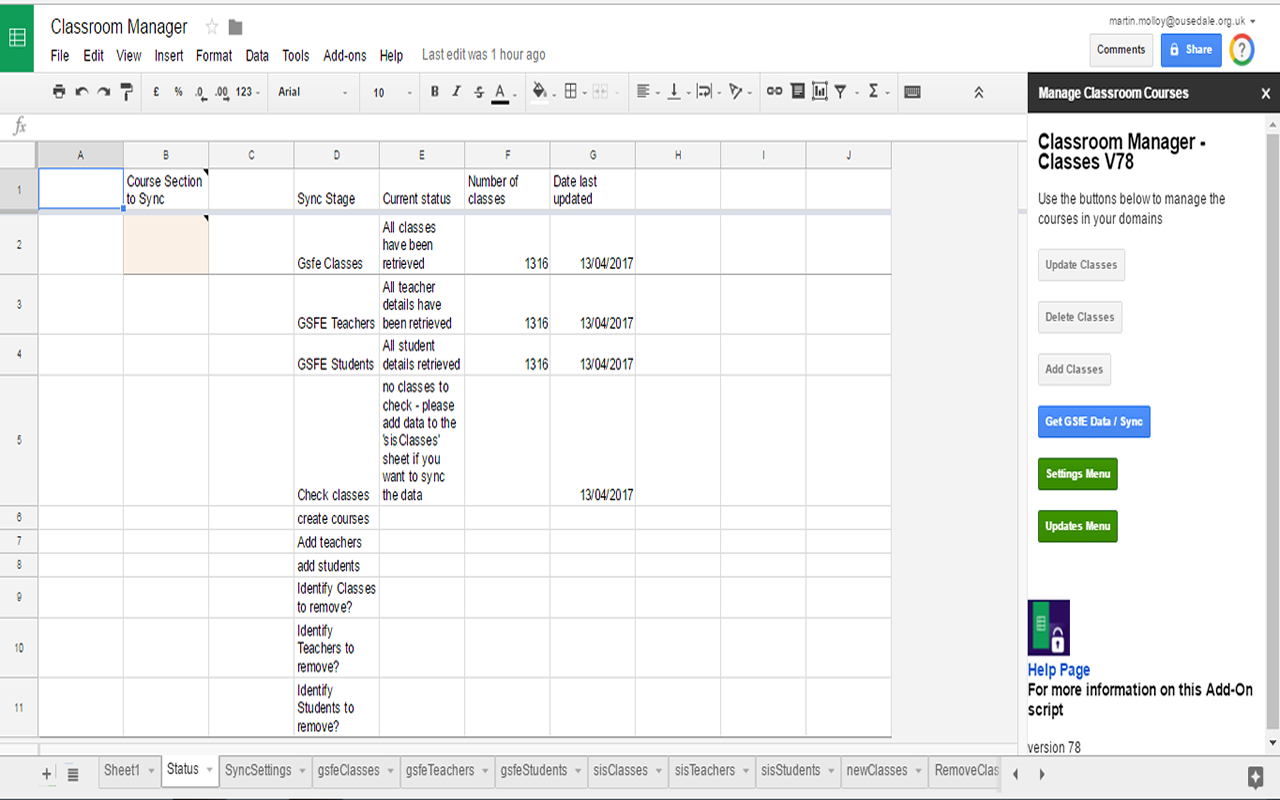
Once you have installed the add-on and setup the spreadsheet you can retrieve details of all existing courses. They are listed on the GSFEcls page. There you will see information about when each class was created; who the owner is; the enrolment code; whether or not Guardian emails have been enabled for the class.   On that page you can also see and update the following class details: Course Name; Course Section; Course State; Course Description Heading; Course Description and Room. You can also get, for each course, numbers of students enrolled in the course. The add-on will also retrieve details of teachers and students attached to a class.

If you upload to the spreadsheet data from your School Information System you can also use the add-on to sync that data with the data in Classroom. New classes will automatically be created where necessary and teachers and students automatically assigned to the appropriate classes.

All the features of the the add-on are free to use for 7 days from first installation. After the trial period you can continue to use the add-on under a free-of-charge standard licence to control 10 of your domain's classrooms. To use the other features you will need to purchase an Admin or Teacher  licence. The admin licence also covers all the teachers in your domain. The cost of an Admin licence is currently $150 for a year.

An Admin licence provides this functionality for all teachers in the domain. If you purchase an admin licence it is not necessary to also purchase teacher licences.

You may need to change some setting in the admin panel to make this work. I have explained how on the link here -

https://docs.google.com/document/d/14KJjCgDJydj8S9FrZeCLXchUIn07Il2-cXQGueA3_dk/view
अतिरिक्त जानकारी
sell
कीमतइस ऐप्लिकेशन को बिना किसी शुल्क के आज़माने की सुविधा उपलब्ध है
code
डेवलपर
email
सहायता
lock
निजता नीति
description
सेवा की शर्तें
flag
शिकायत करेंआपत्तिजनक ऐप्लिकेशन की शिकायत करें







खोजें
खोज हटाएं
खोज बंद करें
Google ऐप
मुख्य मेन्यू