Turn your Google Sheets™ address lists into interactive maps. Filter by location, export results—all in 5 minutes.
Na-update ang listing noong:Abril 14, 2026
Gumagana sa:
Walang review
42
Pangkalahatang-ideya
InstaMaps - Free Salesforce Maps Alternative for Google Sheets™

Export any Salesforce report to Google Sheets™, open InstaMaps, and your accounts are on a filterable territory map in under 5 minutes. No admin setup. No Salesforce package. No per-user cost.

The Problem
Salesforce Maps costs $75/user/month — $9,000/year for a 10-person team. Most sales managers only need two things from it: see where accounts are and filter by territory before a QBR. That doesn't require a $75/user platform.

Without a mapping tool, territory reviews look like this:

Export Salesforce report to CSV
Upload to Google My Maps™ (breaks above 200 rows)
Manually map columns
No filtering by owner, stage, or segment
No way to export filtered results
Rebuild from scratch every quarter
Result: hours of manual work for a single screenshot in your QBR deck.

The Solution
InstaMaps turns any Google Sheets™ address data into an interactive territory map — directly from your Salesforce report export.

🗺️ Territory Visualization

Export your Salesforce report directly to Google Sheets™ (no CSV)
Rename the tab to start with "layer_" (e.g., layer_Accounts)
Open InstaMaps — accounts appear as map markers in seconds
AI detects your address columns automatically (Street, City, State, ZIP, or lat/lng)
Create one tab per rep or region — each gets its own colour on the map

🎯 Real-Time Territory Filters

Filter by account owner, stage, industry, segment — any column in your sheet
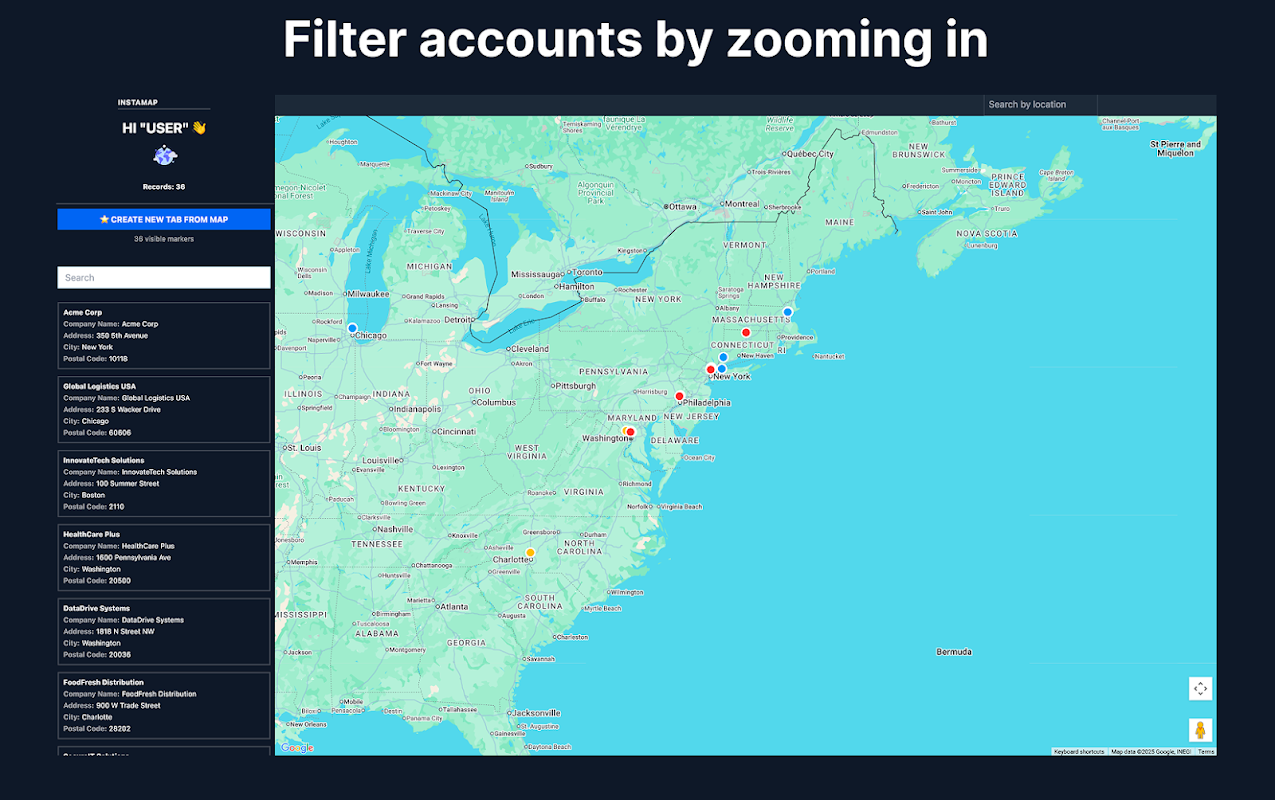
Zoom into a city and filter by viewport — see only accounts in that area
Multiple filters combine instantly
See filtered count update in real-time

📤 Export Filtered Results

One-click export of filtered accounts to a new sheet tab
All columns from your Salesforce report preserved
Share the Google Sheet™ with your team
Screenshot the map for your QBR deck

🚀 Route Planning

Select accounts on the map and generate an optimized route
Supports 50-100 stops per route
See drive times and distances
Export the route list back to Google Sheets™

⚡ 5-Minute Workflow

Export Salesforce report to Google Sheets™ (click Export → Google Sheets in Salesforce)
Rename the data tab to start with "layer_"
Open InstaMaps from the Extensions menu → Load Map
Filter by territory, owner, or any column
Screenshot for your QBR or export filtered accounts
Who Uses InstaMaps?

Sales Managers & Sales Ops

Visualise account distribution across territories before QBRs
Spot coverage gaps — regions with accounts and no assigned rep
Compare territory balance across reps (account count, ARR, tier distribution)
Generate territory map screenshots for quarterly business review decks
Filter by account owner to see one rep's territory at a time
Field Sales Teams

See your territory on a map instead of scrolling a spreadsheet
Filter by stage to focus on active pipeline in your region
Plan multi-stop routes through 50-100 accounts
Export a filtered prospect list for outreach
Revenue Operations

Map any Salesforce report — accounts, opportunities, leads, contacts
Overlay multiple territories on one map using colour-coded layers
Identify territory imbalances before quota setting
No Salesforce admin access required — any user with report access can do this
Key Features

✅ Direct Google Sheets™ Integration — no CSV exports, no file uploads
✅ AI Address Detection — automatically finds address columns in any format
✅ Multi-Layer Territories — one tab per rep/region, color-coded on one map
✅ Dynamic Filters — filter by any column in your sheet
✅ Viewport Filtering — zoom to a region, see only accounts in that area
✅ Route Planning — optimized routes through 50-100 stops
✅ Export to Spreadsheets — filtered results to a new tab, all columns preserved
✅ Works with Salesforce — export any report directly to Google Sheets
✅ No Admin Setup — no Salesforce package, no IT project, no config
✅ Free — no credit card, no per-user cost, no trial period

How It Works

Step 1: Export Your Salesforce Report (1 minute)
Open any Salesforce report with account addresses. Click Export in the report toolbar and select Google Sheets™. The report opens directly in Google Drive™ — no CSV file, no manual upload.

Step 2: Rename the Tab (10 seconds)
Rename your data tab to start with "layer_" — for example "layer_Accounts" or "layer_West_Territory". For multiple territories, create one tab per rep: "layer_Sarah", "layer_James", "layer_Maria". Set different tab colors for each.

Step 3: Open InstaMaps (30 seconds)
Click Extensions → InstaMaps → Open Map. AI scans your column headers and detects address fields automatically — Billing Street, City, State, ZIP, or any standard address format. Accounts appear as colored map markers matching your tab colours.

Step 4: Filter Your Territory (2 minutes)
Filter by account owner to see one rep's territory. Filter by stage to show only active pipeline. Filter by industry or segment. Zoom into a city and click viewport filter to see only accounts in that area. Filters combine in real-time.

Step 5: Use It (30 seconds)
Screenshot the map for your QBR deck. Export filtered accounts to a new sheet tab. Share the Google Sheet™ with your team. Plan a route through selected accounts.

Total time: under 5 minutes.

Example: Quarterly Territory Review

You have a Salesforce report with 500 accounts across 3 reps.

Export to Google Sheets™ → Create 3 tabs: layer_Sarah, layer_James, layer_Maria
Open InstaMaps → All 3 territories appear color-coded on one map
Spot the gap → 40 accounts in Phoenix with no assigned rep
Filter Sarah's territory → She has 120 accounts across 4 states (too spread out)
Screenshot for QBR → Paste into your deck with the coverage gap highlighted
Export Phoenix accounts → New "Unassigned_Phoenix" tab for the reassignment discussion
Time spent: 5 minutes. Cost: $0. Salesforce Maps equivalent: $9,000/year.

What You Get (Free)

Unlimited Google Sheets™
Unlimited addresses (no daily geocoding quota)
AI-powered address detection
Interactive Google Maps™ with colored markers
Multi-layer territory visualization
Dynamic filters (any column)
Viewport-based location filtering
Route planning (50-100 stops)
Export filtered results to Google Sheets™
Team collaboration via Google Sheets™ sharing
Requirements

Google Account™ (Free or Google Workspace™)
Google Sheet™ with address data (or a Salesforce report export)
Data Privacy & Security
✅ Your data stays in YOUR Google Sheet™
✅ We only access sheets you explicitly open in InstaMaps
✅ No data stored on our servers
✅ Maps generated on-demand, not cached
✅ You control who can access your Google Sheet™ via Google's native sharing™

Common Questions

Q: Does my Google Sheet™ need a specific format?
A: No. InstaMaps AI detects address columns automatically — full address in one column, split across multiple columns (Street, City, State, ZIP), Salesforce billing address fields, or lat/lng coordinates. All formats work.

Q: How many addresses can I map?
A: No daily limit. InstaMaps geocodes server-side rather than through the Apps Script Maps service™, so there's no 1,000-address-per-day quota that limits most free add-ons.

Q: Does this replace Salesforce Maps?
A: For territory visualisation and QBR prep — yes. InstaMaps covers the "see where accounts are, filter by territory, screenshot for the deck" workflow for free. If your team needs daily multi-stop route optimisation with real-time rep tracking and visit logging synced back to Salesforce, that's a different use case where Salesforce Maps or Badger Maps may still be needed.

Q: Do I need Salesforce admin access?
A: No. Any Salesforce user with report access can export a report to Google Sheets and open InstaMaps. No Salesforce package to install, no admin configuration, no IT project.

Q: What if my addresses are in multiple columns?
A: InstaMaps detects split address columns (Billing Street, Billing City, Billing State, Billing Postal Code) and combines them automatically. No manual column mapping.

Q: Can multiple reps use the same map?
A: Yes. Share the Google Sheet™ using Google's native sharing. When anyone opens InstaMaps on that sheet, they see the same territory map with the same layers and filters.

Q: Can I save filtered views?
A: Export creates a new sheet tab with your filtered results. Create as many tabs as you need — "Chicago_Tech", "Unassigned_Phoenix", "Q3_Pipeline" — each is a saved view.

Get Started (Free)

Install from Google Workspace Marketplace™
Open any Google Sheet™ with addresses
Rename the tab to start with "layer_"
Click Extensions → InstaMaps → Open Map
Done.
No credit card. No per-user cost. No admin setup. Free forever.

Stop paying $75/user to see where your accounts are.

Google Sheets™, Google Maps™, Google Workspace™, and Google My Maps™ are trademarks of Google LLC. Salesforce is a trademark of Salesforce, Inc. InstaMaps is not affiliated with or endorsed by Salesforce, Inc.
Karagdagang impormasyon
PagpepresyoLibre
Patakaran sa privacy
Mga tuntunin ng serbisyo
Hihilingin ng InstaMaps ang mga pahintulot na ipinapakita sa ibaba. Matuto pa
Mangangailangan ang InstaMaps ng access sa iyong Google account
Papayagan nito ang InstaMaps na:
Tingnan at pamahalaan ang mga spreadsheet kung saan naka-install ang application na ito
Nagpapakita at nagpapagana ng web content ng third-party sa mga prompt at sidebar sa loob ng mga Google application
Kumonekta sa isang panlabas na serbisyo
Tinitingnan ang pangunahing email address ng iyong Google Account
Tumitingin sa iyong personal na impormasyon, kasama ang anumang personal na impormasyong ginawa mong available sa publiko
Mga Review
Wika:
Pagbukud-bukurin ayon sa:
Hindi nagve-verify ang Google ng mga review o rating. Matuto pa tungkol sa mga review
Walang komento
Search
I-clear ang paghahanap
Isara ang paghahanap
Mga app ng Google
Pangunahing menu