
Google Workspace Marketplace

OCR Text Extractor - Image & PDF to Text
Image to text and PDF to text OCR for Google Docs™, Sheets™, and Slides™. Extract text from screenshots, scanned documents, receipts, handwriting, and tables - copy and paste instantly.
Listing updated:September 4, 2026
Works with:


No reviews
76



Overview
Extract text from images and PDFs instantly inside Google Docs™, Google Sheets™, and Google Slides™. OCR Text Extractor is the fastest way to turn screenshots, scanned documents, photos, and PDFs into editable, copy-pasteable text — without leaving your workspace.
Powered by Google Cloud Vision™ for industry-leading accuracy on printed text, handwriting, and complex layouts.

✦ TWO EXTRACTION MODES
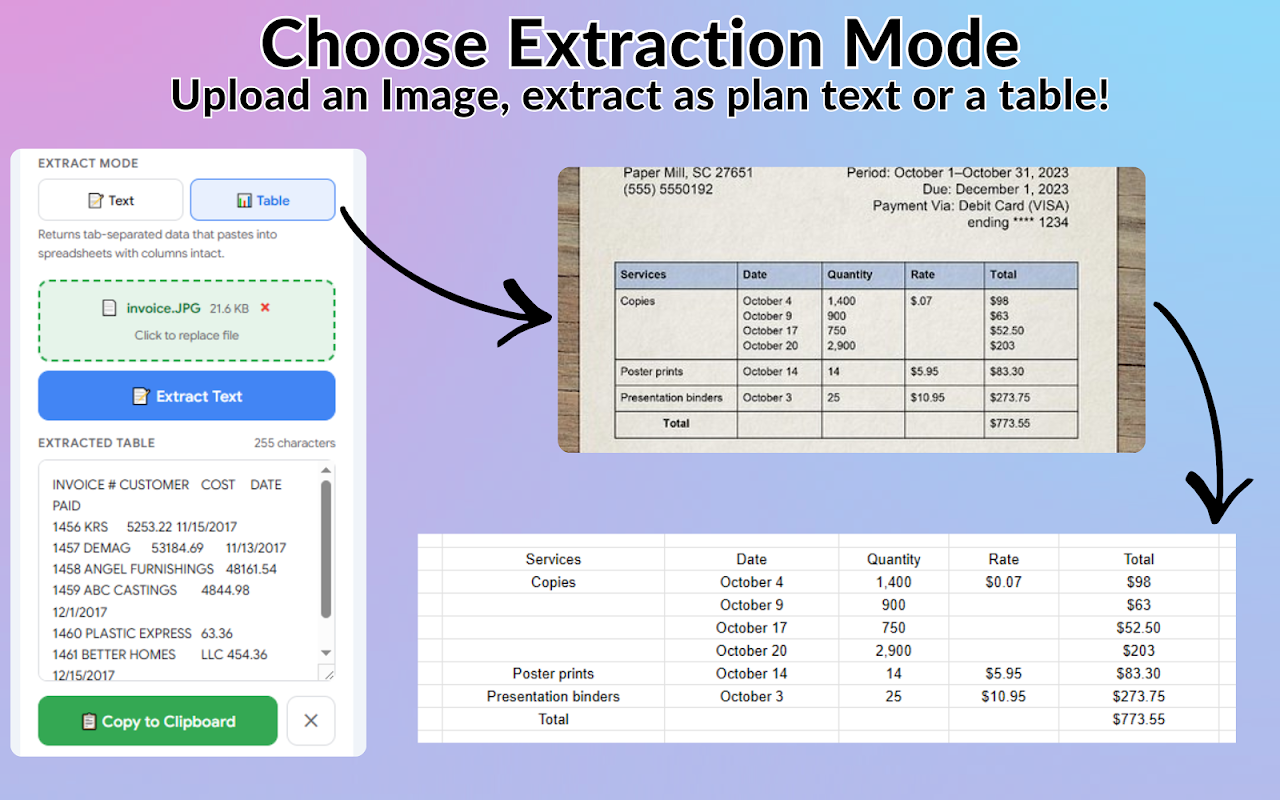
TEXT MODE
Upload an image or PDF and get clean, readable text back in seconds. Perfect for paragraphs, articles, scanned letters, receipts, and any document where you need the words.
TABLE MODE
Extracts structured, tab-separated data that pastes directly into Google Sheets™ with rows and columns intact. Perfect for invoices, financial statements, spreadsheet screenshots, price lists, and any tabular data.

✦ HOW IT WORKS
Open OCR Text Extractor from the Extensions menu in Google Docs™, Sheets™, or Slides™
Choose your extraction mode — Text or Table
Upload an image (PNG, JPG, WEBP) or PDF — drag & drop or click to browse
Click "Extract Text" — your text appears in seconds
Copy to clipboard with one click and paste anywhere in your document

✦ FEATURES
★ Powered by Google Cloud Vision™ — 98%+ accuracy on printed text
★ Image & PDF support — PNG, JPG, WEBP, and multi-page PDFs
★ Table extraction — preserves row and column structure for spreadsheet pasting
★ Multi-page PDFs — each page is extracted and labeled separately
★ One-click copy — extracted text goes straight to your clipboard
★ Works in 3 apps — Google Docs™, Sheets™, and Slides™
★ Sub-second processing — no waiting, results appear almost instantly
★ Handwriting support — extracts handwritten notes and annotations
★ No watermarks, no ads

✦ POPULAR USE CASES
→ Scanned documents — convert scanned PDFs and photos of paperwork into editable text
→ Screenshots — extract text from screenshots of websites, emails, or chat messages
→ Receipts & invoices — pull line items, totals, and vendor info from photos of receipts
→ Business cards — capture names, phone numbers, and addresses from card photos
→ Spreadsheet images — extract table data from screenshots and paste into Sheets with columns intact
→ Handwritten notes — digitize meeting notes, whiteboard photos, and sticky notes
→ Academic research — extract text from scanned journal articles, textbooks, and PDFs
→ Data entry — eliminate manual typing by extracting text from any image source
→ Product labels — capture ingredient lists, serial numbers, and specifications from photos
→ Foreign language text — extract text in any language supported by Google Cloud Vision™

✦ SUPPORTED FILE TYPES
PNG • JPG / JPEG • WEBP • PDF (single and multi-page)
Maximum file size: 10MB

✦ PRICING
★ 5 free extractions — no credit card, no time limit
★ Pro: $5.99/month — unlimited text extractions, all features
★ Cancel anytime
OCR Text Extractor works entirely inside Google Workspace™ — no downloads, no external software, no file conversions.

✦ FREQUENTLY ASKED QUESTIONS
Q: How accurate is the text extraction?
OCR Text Extractor uses Google Cloud Vision™, which achieves 98%+ accuracy on clear, printed text. Accuracy depends on image quality, resolution, and clarity.
Q: Can I extract text from multi-page PDFs?
Yes. Each page is processed separately and the extracted text is labeled by page number.
Q: How do I paste table data into Google Sheets™?
Use Table mode to extract your data, click "Copy to Clipboard," then paste into Google Sheets™. The tab-separated format automatically fills rows and columns.
Q: Does it work with handwriting?
Yes. Google Cloud Vision™ supports handwriting recognition, though accuracy may vary depending on legibility.
Q: What languages are supported?
OCR Text Extractor supports all languages recognized by Google Cloud Vision™, including English, Spanish, French, German, Chinese, Japanese, Korean, Arabic, Hindi, and many more.
Q: Is my data stored on your servers?
No. Uploaded images and PDFs are processed in memory and are not stored after the extracted text is returned to you.

✦ PRIVACY
Your uploaded images and PDFs are processed in memory and never stored on our servers. We only access your email address for account identification. Your document content is never read, stored, or shared.
Compliant with GDPR and CCPA.

✦ SUPPORT
Website: https://fractalapps.dev
Questions or feedback? Reach out through our website.

✦ DISCLAIMER
OCR Text Extractor - Image & PDF to Text is not affiliated with Google™. All trademarks are the property of their respective owners.
Google Docs™, Google Sheets™, and Google Slides™ are trademarks of Google LLC.
Additional information
sell
PricingFree of charge with paid features
code
Developer
email
Support
lock
Privacy policy
description
Terms of service
flag
ReportFlag as inappropriate



Search
Clear search
Close search
Google apps
Main menu