
Google Workspace Marketplace


Slide2Image Converter
Simple and Fast: Effortlessly convert Google Slides™ into high-quality images with a single click!
דף האפליקציה עודכן בתאריך:16 באוגוסט 2025
האפליקציה פועלת עם:
+2K



סקירה כללית
**👋 How to Launch Slide2Image (Important!):**

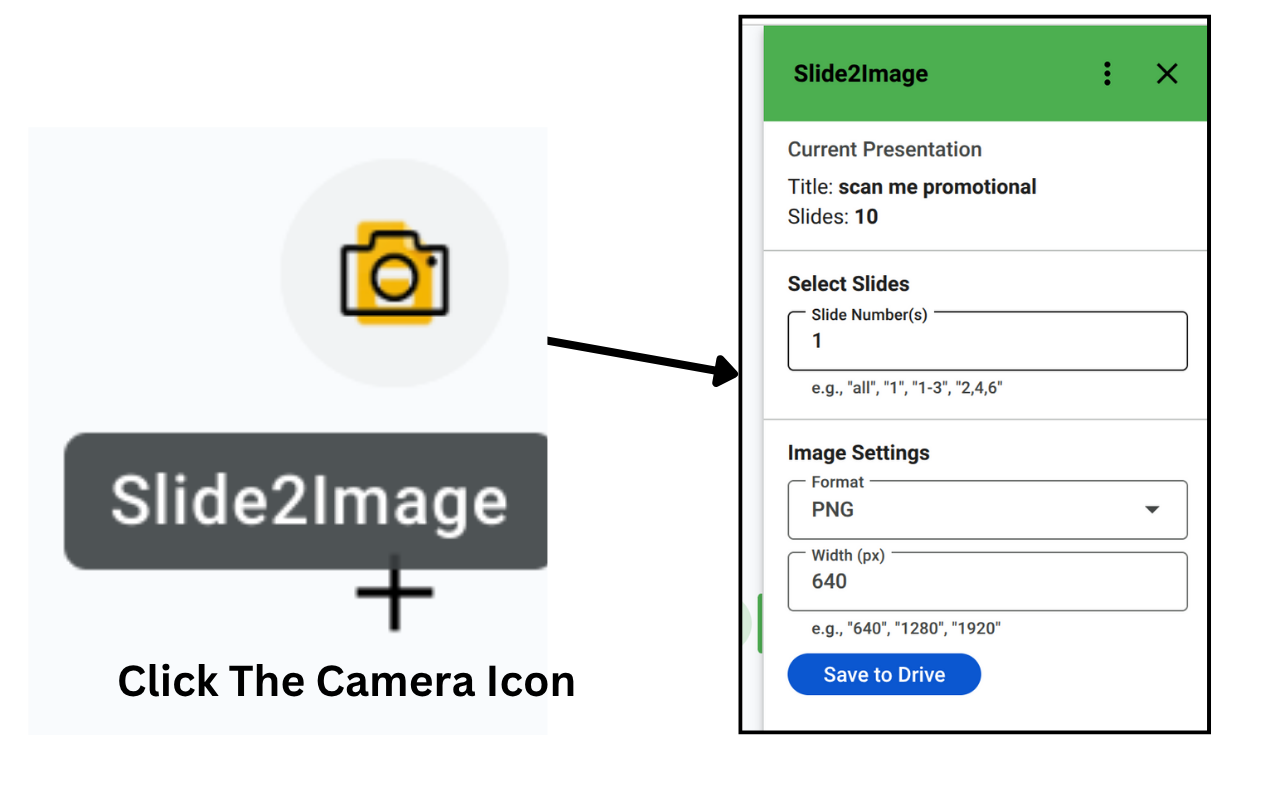
After installing, open any Google Slides™ presentation. Look for the **arrow in the bottom right corner** of your screen. Click it to expand the side panel. Then, find the **“Camera Over Slide” icon** and click to open the add-on.

--------------------------------------------------------------------------------------------------------------------
** What's New! 🌟**

**v2.2.0: Email Verification Code Related Bug Fixed**
- Email Verification Codes sending process is now being normally processed.
--------------------------------------------------------------------------------------------------------------------


# Slide2Image: Convert Slides to Images Instantly! 📸✨

**Effortlessly transform your Google Slides™ presentations into high-quality images with Slide2Image!**

This handy add-on lets you:

🚀 **Flexible Export**: Convert **single, multiple (e.g., "1-3", "2,4,6"), or all** slides to images!

📏 **Custom Dimensions**: Define your preferred image **width** in pixels.

🖼️ **Choose Your Format**:  Now supports PNG, JPEG, BMP, SVG (scalable vectors), and GIF (animated slides) for ultimate versatility.

💾 **Direct to Drive**: Images are saved straight to your Google Drive™ for easy access.

-------------------------------------------------------------------------------------------------------------------

## How to Use Slide2Image! ✨

1️⃣ **Enter Slide Numbers**: Specify slides (e.g., "1", "1-3", "2,4,6", or "all").

2️⃣ **Choose Format**: Select PNG, JPEG, BMP, SVG, or GIF.

3️⃣ **Set Width**: Enter a custom width in pixels (e.g., 800 for small, 1920 for wide).

4️⃣ **Save**: Click **Save**, and images are exported to your Google Drive!

**Pro Tip**: Entered invalid slide numbers? The add-on will prompt you to correct them.

----------------------------------------------------------------------------------------------------------

## Who’s It For? 🌟

- **Educators**: Create handouts or course visuals from slides.

- **Marketers**: Turn slides into social media graphics or blog images.

- **Presenters**: Export slides for reports or client deliverables.

- **Designers:** Export SVG for scalable web graphics or BMP for high-fidelity editing.


----------------------------------------------------------------------------------------------------------


## Common Questions ❓

- **Where are images saved?** In the same folder as your presentation in Google Drive.

- **How fast is it?** Most exports finish in seconds, depending on slide count.

- **Why choose each format?**

- PNG: High quality, transparent backgrounds.

- JPEG: Smaller file sizes for web or email.

- BMP: Uncompressed, ideal for editing.

- SVG: Scalable vectors for web or print.

- GIF: Animated images for dynamic content.


-----------------------------------------------------------------------------------------------------------------------

➡️ Need a quick guide?

Check out the detailed User Guide @  https://www.scriptportal.dev/products/slide2image#h.s7du6il1lxr
מידע נוסף




חיפוש
ניקוי החיפוש
סגירת החיפוש
אפליקציות Google
התפריט הראשי