
Google Workspace Marketplace


Smart Form Options
Automatically populate Google Forms™ multiple-choice, dropdown, checkbox, and grid questions directly from Google Sheets™. Update form options in real-time and hourly trigger.
דף האפליקציה עודכן בתאריך:28 באוגוסט 2026
האפליקציה פועלת עם:
298


סקירה כללית
Smart Form Options is a powerful Google Forms™ add-on allows you to dynamically populate and update multiple-choice, dropdown, checkbox, and grid options directly from your Google Sheets™.

►► Key Features:

► Dynamic Form Field Population: Effortlessly populate multiple-choice, dropdown, checkbox, and grid options in your Google Forms™ with real-time data from your Google Sheets™.
► Automated Data Sync: Set your form lists to refresh automatically on an hourly schedule. You can also configure updates to occur automatically upon form submission, enabling truly dynamic form options.
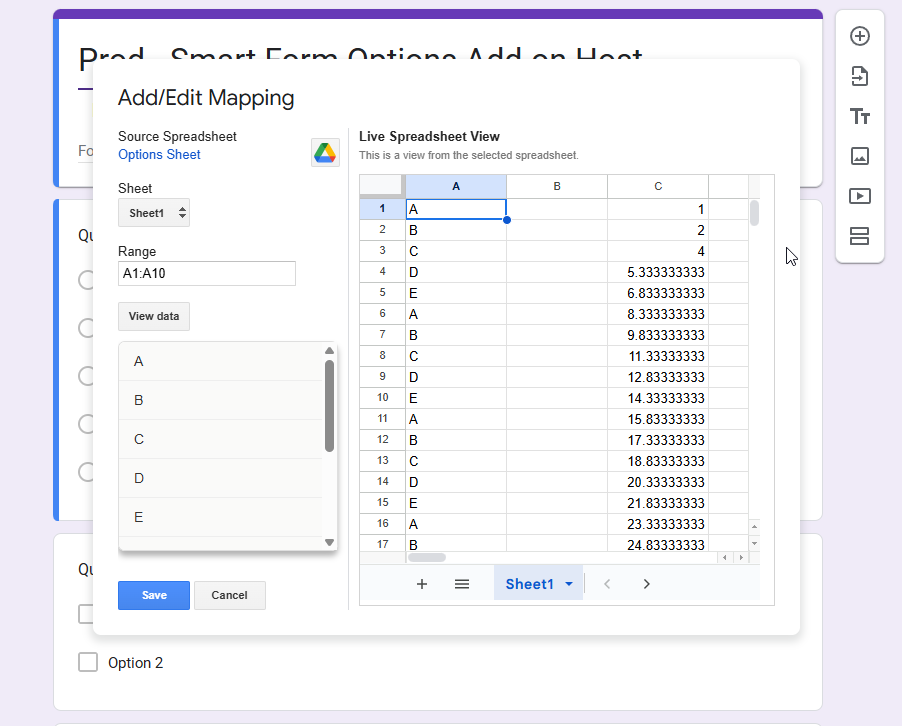
► Seamless Google Sheets™ Integration: Connect directly to your Google Sheets™ data source. Select specific sheets, define ranges, or choose entire columns to pull values into your form questions.
► Eliminate Redundant Data Entry: No more maintaining the same values in both Google Sheets™ and Google Forms™. Smart Form Options ensures your form choices always reflect the latest data from your sheets.
► Streamlined Workflow & Increased Productivity: Automate the process of updating form options, saving you significant time and effort. Reuse existing data to pre-fill your forms and boost your overall productivity.
► Centralized Data Management: Load data from a central Google Sheet™ into multiple Google Forms™ without duplicate entries, ensuring consistency across all your forms.
► Advanced Formula Support: Leverage powerful Google Sheets™ formulas like COUNTIF, VLOOKUP, MATCH, IF, and UNIQUE to create sophisticated dynamic behaviors, such as "shrinking" lists of available options or "growing" lists based on open-ended submissions.
► Run Multiple Updates: Effortlessly run automatic updates for several Google Forms™ at once.

►► Use Cases:

► Real-time Data Refresh: Keep your Google Form™ questions updated with the latest customer or supplier data from your Google Sheets™.
► Appointment & Event Management: Design forms for appointments, event registrations, or sign-ups with options that reflect real-time availability.
► Surveys & Feedback: Create dynamic surveys where options can be updated based on previous responses or external data.
► Inventory Management: Ensure form choices for inventory items always match your current stock levels.
► Student Rosters & Workshop Titles: Automatically populate choices for student names, workshop sessions, or other record-based data.

►► Quick Start Guide:

1.  Choose Question: Go to the "Add-ons" menu in your Google Form™, select "Smart Form Options," and then "Create Mapping." Choose the specific question (Dropdown, Multiple Choice, Checkbox, or Grid) where you want to insert dynamic values.
2.  Create Mapping: After selecting your question, choose your data source, typically a Google Sheet™. Select the relevant spreadsheet from your Google Drive™, then specify the sheet and define a range or a column within that sheet. Click "Save" to create the mapping.
3.  Update Mapping: Initiate the process to update the values. You can also configure automatic updates to occur after a Google Forms™ submission or on a scheduled basis (hourly).

►► Support:

For comprehensive assistance, please refer to our detailed user manual and quick start guide. If you have any questions or encounter any issues, our support team is ready to help.

Contact Support Page: https://gwaddons.com/contact
מידע נוסף
sell
תמחורבחינם עם תכונות בתשלום
code
email
lock
מדיניות הפרטיות
description
תנאים והגבלות
flag
דיווחסימון כבלתי הולמת





חיפוש
ניקוי החיפוש
סגירת החיפוש
אפליקציות Google
התפריט הראשי