
Google Workspace Marketplace


Zengin File Viewer
Expand and verify Zengin format (Japanese bank transfer format) files in Google Sheets™ before uploading to internet banking.
Gawa ng:
Na-update ang listing noong:Hulyo 27, 2026
Gumagana sa:
Walang review
3


Pangkalahatang-ideya
◆ About This Add-on

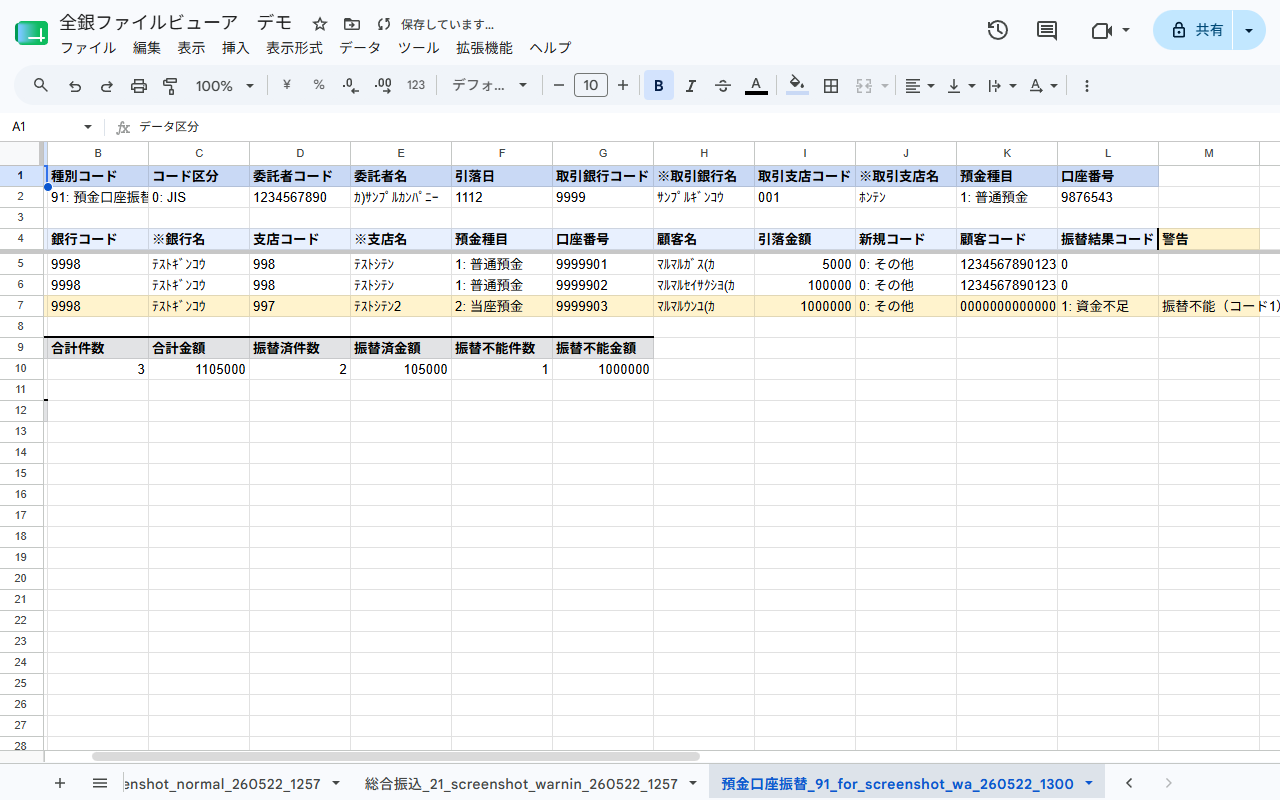
Zengin File Viewer is a Google Workspace™ add-on that expands Zengin format (Japanese bank transfer format, fixed-length text) bank transfer and direct debit files into a human-readable format within Google Sheets™.
Its purpose is to let you visually inspect and validate the contents of Zengin files exported by accounting software such as freee or MoneyForward Cloud before uploading them to internet banking.


◆ Who Is This For?

• You want to check the contents of a Zengin file, but fixed-length text is not human-readable
• You want to catch errors before they happen at upload ("the file was rejected by internet banking")
• You want to double-check files exported by freee or MoneyForward before submitting them


◆ Features

▷ See Your Zengin File at a Glance

Fixed-length Zengin files are difficult for accounting staff to read directly in a text editor. This add-on expands each file into a spreadsheet with one field per column.

▷ Supported File Types

• "総合振込": General Transfer (type code 21)
• "給与振込・賞与振込": Salary / Bonus Transfer (type codes 11, 71, 12, 72)
• "口座振替結果": Direct Debit Result (type code 91)
• "振込入金通知": Transfer Credit Notification (type code 01)
• "入出金明細": Account Transaction Statement (type code 03)

▷ Automatic Validation

Rows with potential issues are highlighted in yellow when the file is loaded.

• Amount is zero
• Bank code (4 digits) or account number (7 digits) has incorrect length
• Mismatch between trailer record totals and actual data
• Recipient name contains full-width characters
• Duplicate transfers to the same account number


◆ Ready to Use After Installation

Install from Google Workspace™ Marketplace and a "全銀ファイルビューア" (Zengin File Viewer) menu is added to your spreadsheet. No additional software required.

▷ No External Transmission

File contents are never sent to external servers. All processing runs entirely within your Google account environment.


◆ How to Use

1. Open a Google Spreadsheet
2. Select "全銀ファイルビューア" (Zengin File Viewer) → "全銀ファイルを読み込む" (Load Zengin File) from the menu
3. Choose and upload your Zengin file (.txt, etc.)
4. The parsed results appear in a new sheet


◆ Pricing

All features are free to use during the open beta period.

---

Google Sheets™ and Google Workspace™ are trademarks of Google LLC.
Karagdagang impormasyon
sell
PagpepresyoLibre na may mga bayad na feature
code
Developer
email
Suporta
lock
Patakaran sa privacy
description
Mga tuntunin ng serbisyo
flag





Search
I-clear ang paghahanap
Isara ang paghahanap
Mga app ng Google
Pangunahing menu