Less switching, more flow: 5 new agentic capabilities across Google Workspace apps
Jill Daley
Product Manager, Google Workspace
Try Google Workspace at No Cost
Get a business email, all the storage you need, video conferencing, and more.
SIGN UPJumping between tabs and apps interrupts your concentration. It slows down your momentum when you are in the middle of important work. Now, you can prompt Gemini to complete complex, cross-app tasks from wherever you are working, including Gmail, Drive, Docs, Slides, and Chat. Gemini works as an intelligent orchestrator, generating formatted Docs, structured Sheets, or stylized Slides under your direction while you stay focused on your current task.
How these new capabilities work
Gemini uses Workspace Intelligence and deeper app integrations to connect the dots and gather real-time context from your relevant files, emails, and chat threads, depending on which sources you select (or your admin has enabled). Under your direction, Gemini works in the background to help you get things done, like securely creating the first draft of a document in Google Drive for you to review.
Here are five simple ways you can use Gemini across your Workspace apps to save time and keep your workday momentum going.
1. Create a presentation directly from Google Chat
Imagine you are in the middle of a conversation in Chat. Your manager asks for a progress update on the upcoming product launch to share with leadership. Traditionally, this would mean hours of work: first to track down the many related details, then navigating to Google Slides and building a deck slide by slide.
Now, you can get your presentation started without tuning out of the conversation. Open Ask Gemini in Chat. With a simple prompt, you can direct Gemini to track down the latest project status and then assemble the slides* you need for the project update.

To do this, Gemini works in the background to gather insights from your active projects, Chat conversations, Gmail inbox, and action items. It generates a visually rich, multi-slide presentation built with those insights, and provides a direct link to the Slides presentation, so you can dive in and refine as necessary. In one step, Gemini gets you nearly to the finish line on a project that could have taken hours.
*You might notice Gemini asking some clarifying questions in this experience. This is one example of the ways we're looking to continue to improve these features to allow you to get even more customized help with AI. It’s coming soon to all of the places where you can create presentations in Workspace.
2. Build detailed spreadsheets without leaving Google Drive
While reviewing project folders in Drive, you might realize you need a central place to track costs and material specs. In the past, that meant opening Sheets, manually digging through folders to copy over data, and building formulas and tables from scratch.
Instead, you can prompt Gemini right inside Drive to do the heavy lifting for you.

Gemini analyzes the open folder that you provided as well as any relevant data from other sources you choose, including information like material costs and sustainability metrics, and organizes everything into a structured spreadsheet. From there, you can continue to refine and analyze your data further.
3. Draft and send team emails directly inside Google Docs
Suppose you just finished updating a strategic sales overview in Docs, and you need to send a recap email to your sales team to get their feedback. Usually, that means manually highlighting text, copying it, opening Gmail, and writing an update from scratch.
With Gemini, you can draft that email without ever leaving your document.

Gemini uses context from the document to draft an email summarizing milestone progress in your typical voice, and even pulls in any other information around the project from sources that you have selected or your admin has enabled. Then, you can review it, add your recipients, and hit send when you are ready. You can even send the email directly from Docs if you prefer.
4. Transform long email threads into structured briefs
We’ve probably all received an urgent email from a manager or client asking for a project or strategy brief on short notice. Sifting through long, detailed email threads to extract goals, targets, and next steps can be a time drain.
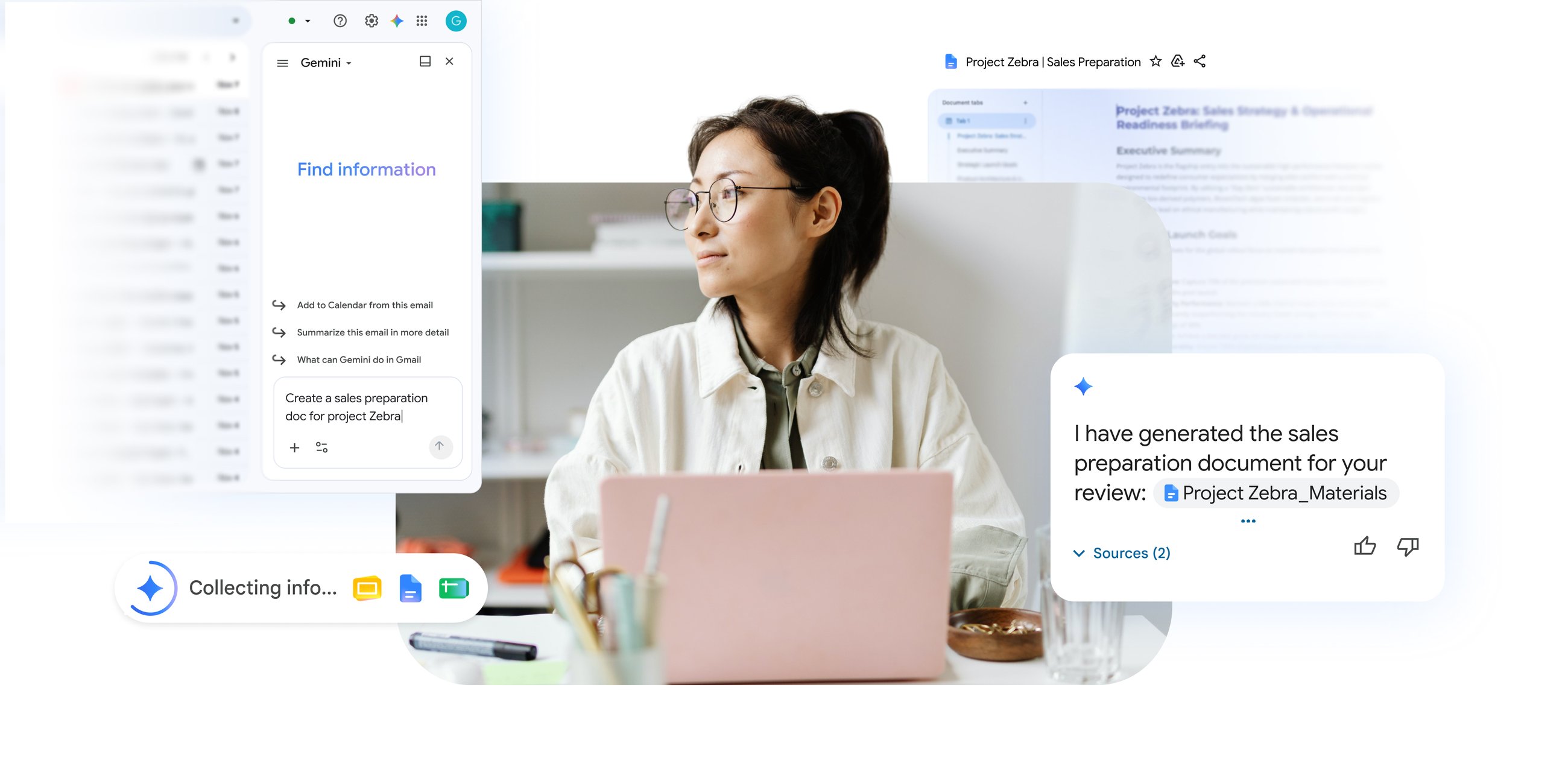
You can ask Gemini directly in Gmail to synthesize those threads into a structured document while you keep working through your inbox.

Gmail uses Workspace Intelligence to connect your active email thread with related Drive files, emails, and chats to generate a comprehensive Doc. It automatically structures the key details, goals, and next steps into an editable brief, and includes a link in your side panel so you never lose your place in your inbox.
5. Convert a written proposal in Docs into a branded deck
Picture this: You wrote a detailed strategy brief in Docs, but your director asks instead for a visual presentation for an executive review. Rebuilding your written ideas into visual slides is usually a tedious design exercise.
Gemini now lets you turn written content into a fully editable slide deck directly from your document.

Gemini identifies key points in your text and arranges them into clean, visual slides. If referencing your team's brand guidelines or slide template, Gemini will apply your custom visual style automatically. Your presentation is saved straight to Drive, ready to review and share for the discussion with leadership.
Beyond these examples, you can also conduct Deep Research, and even manage your scheduling, tasks, and other to-do’s across Workspace apps, allowing you to find open times, schedule meetings, resolve calendar conflicts, log reminders, or create a to-do list in Google Tasks.
These new capabilities will also soon power the flows you build in Workspace Studio, allowing you to more effectively automate simple tasks to streamline complex processes in your everyday work.
Work smarter without breaking your flow
Completing complex work shouldn't mean constantly jumping between tools. Whether you are getting ready for a sales call, organizing project data, or drafting team updates, Gemini works as an intelligent collaborator across Workspace, helping you stay in the flow and decrease the amount of time you spend jumping around your tabs.
What's next: These capabilities are rolling out now to try for customers with Business Standard, Business Plus, Enterprise Standard and Enterprise Plus plans, Google AI Pro and Ultra personal plans, or the Google AI Pro for Education plan. Open the side panel in the Workspace apps you use everyday, or try Ask Gemini in Drive (or Chat, when available in the coming weeks) to get started and see how much faster your work moves forward.