Spend less time prompting: 6 ways Workspace Intelligence offers personalized help

Chris Curtis
Product Marketing Manager, Google Workspace with Gemini
Try Google Workspace at No Cost
Get a business email, all the storage you need, video conferencing, and more.
SIGN UPWe've all been there: You open an app, stare at a blank prompt box, and try to figure out what you need to type to get the result you want. You search for old files, copy-paste meeting notes, and rewrite AI drafts so they actually sound like you. Prompting takes real work.
Workspace Intelligence, which we announced in April, is a new technology layer that gives the tools you use every day — like Gmail, Docs, Drive, and more — a real-time, unified understanding of your work. It’s built right into these Google Workspace apps, so instead of writing long prompts or tagging individual files, the dots are connected for you automatically, with a built-in understanding of your team and projects. This means you get personalized help right away, with no setup required.
Here are six ways Workspace Intelligence levels up the help you get from AI:
1. Google Chat: Stay on top of chaotic work projects
Before: Important tasks and project decisions easily get buried in busy chat threads, forcing you to search through different files to learn more about a project or recall your assigned action items.
After: A unified command center that knows your work context. Ask Gemini built into Chat gives you daily briefings with key updates about your day. Or, use it to search your entire team's secure knowledge base*.
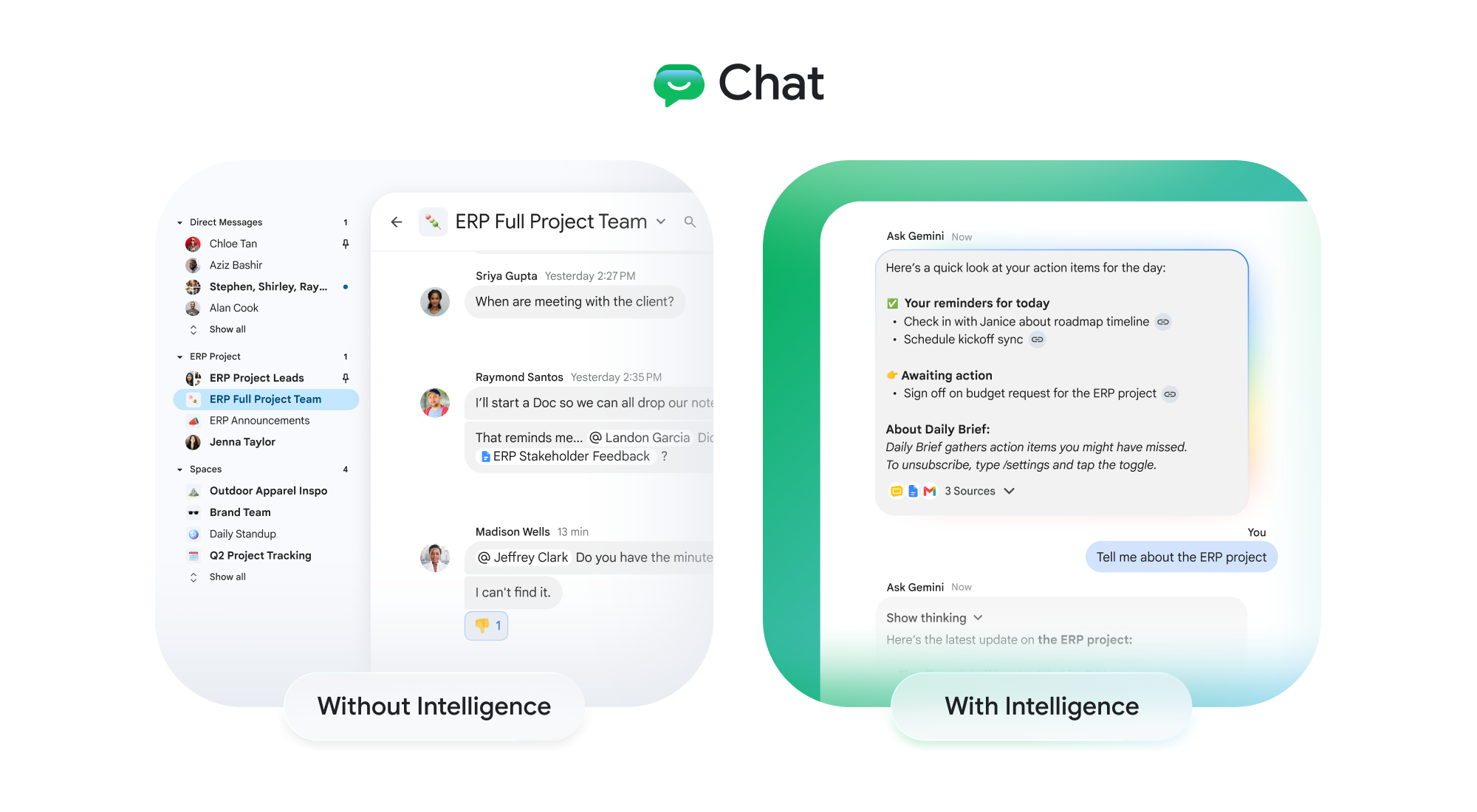
Get updates about your day and ask Gemini questions about work.
2. Drive: Find answers instead of hunting for files
Before: Guessing keywords and exact file names while wondering where your team saved that document, thinking “where did I see that update again?” and getting information from one file at a time.
After: A living knowledge base. AI Overviews let you scan all of your files for quick answers. Or use Ask Gemini in Drive to ask conversational questions about your files and group related documents into Drive projects.
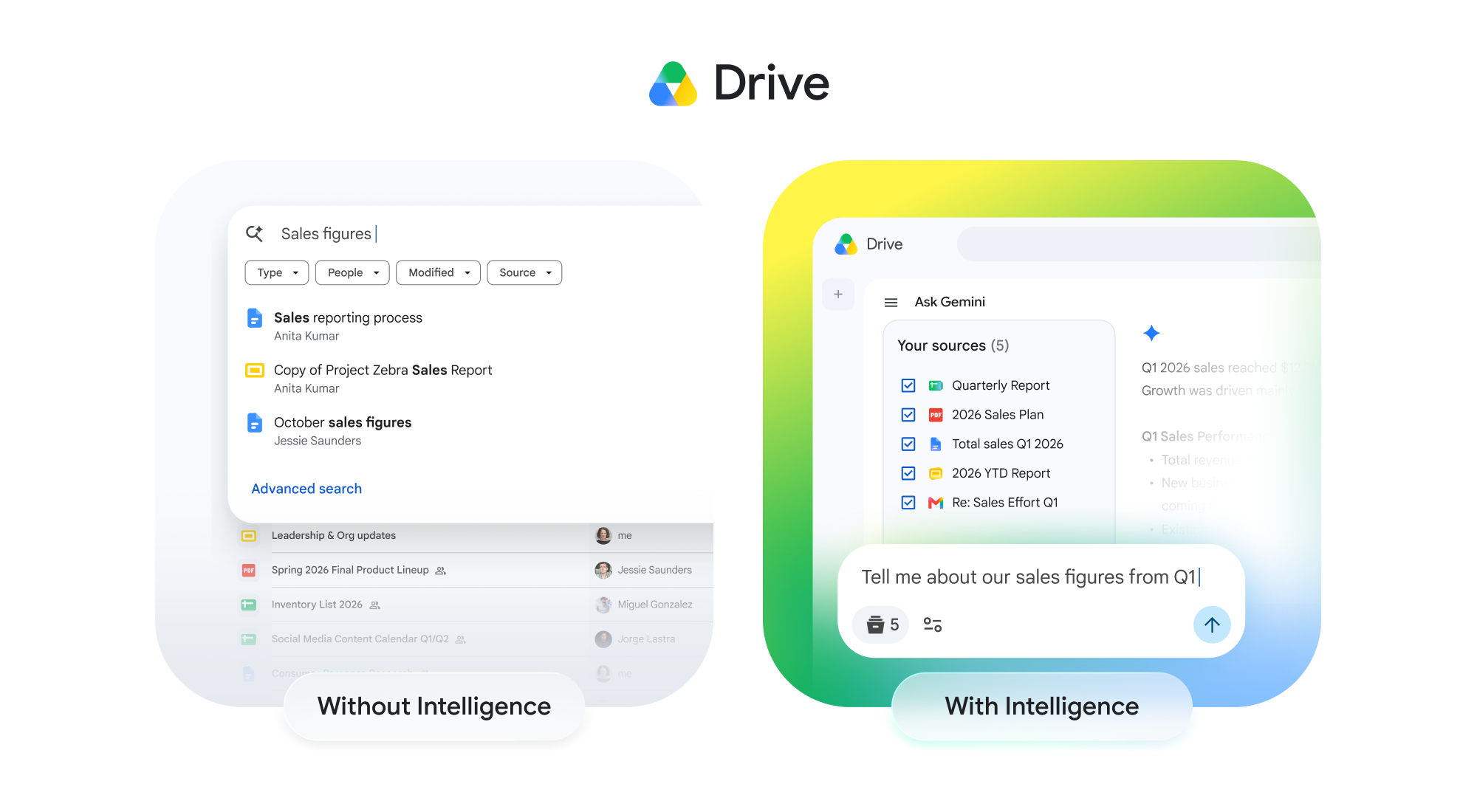
Tap into your overall knowledge base of work to get answers quickly.
3. Gmail: One-shot drafts that sound like you and cut through inbox noise
Before: Drafting updates with AI that require heavy editing and guidance to sound like you, so the time you would have saved was spent refining the email. Or you sorted through long email threads to find a particular project’s history, and read through all of your emails one by one.
After: Quick, personalized drafts and quieting the inbox noise. Help me write understands your work relationships, team hierarchy, and recent project history, so it can draft personalized emails in your voice with built-in knowledge of the topic. Plus, AI Inbox* highlights urgent action items and project status using your work context.

Draft emails in your writing style and stay on top of your inbox.
4. Docs: Go from blank page to brilliance
Before: Staring at a blank page while hunting down scattered files, pasting links, and manually building complex prompts.
After: Describe your goal and get personalized, contextually relevant draft documents. Gemini automatically connects related details from your recent files, chats, emails, and notes into a complete, citable draft in a consistent style.

Create relevant drafts with context.
5. Slides: Build branded decks with minimal prompting
Before: Building slides one by one, and when using AI, typing detailed brand guidelines into your prompts, with outputs having improper formatting.
After: Beautiful presentations ready to be refined. Workspace Intelligence checks your team's existing presentations and brand templates to generate editable slides that match your fonts and style.
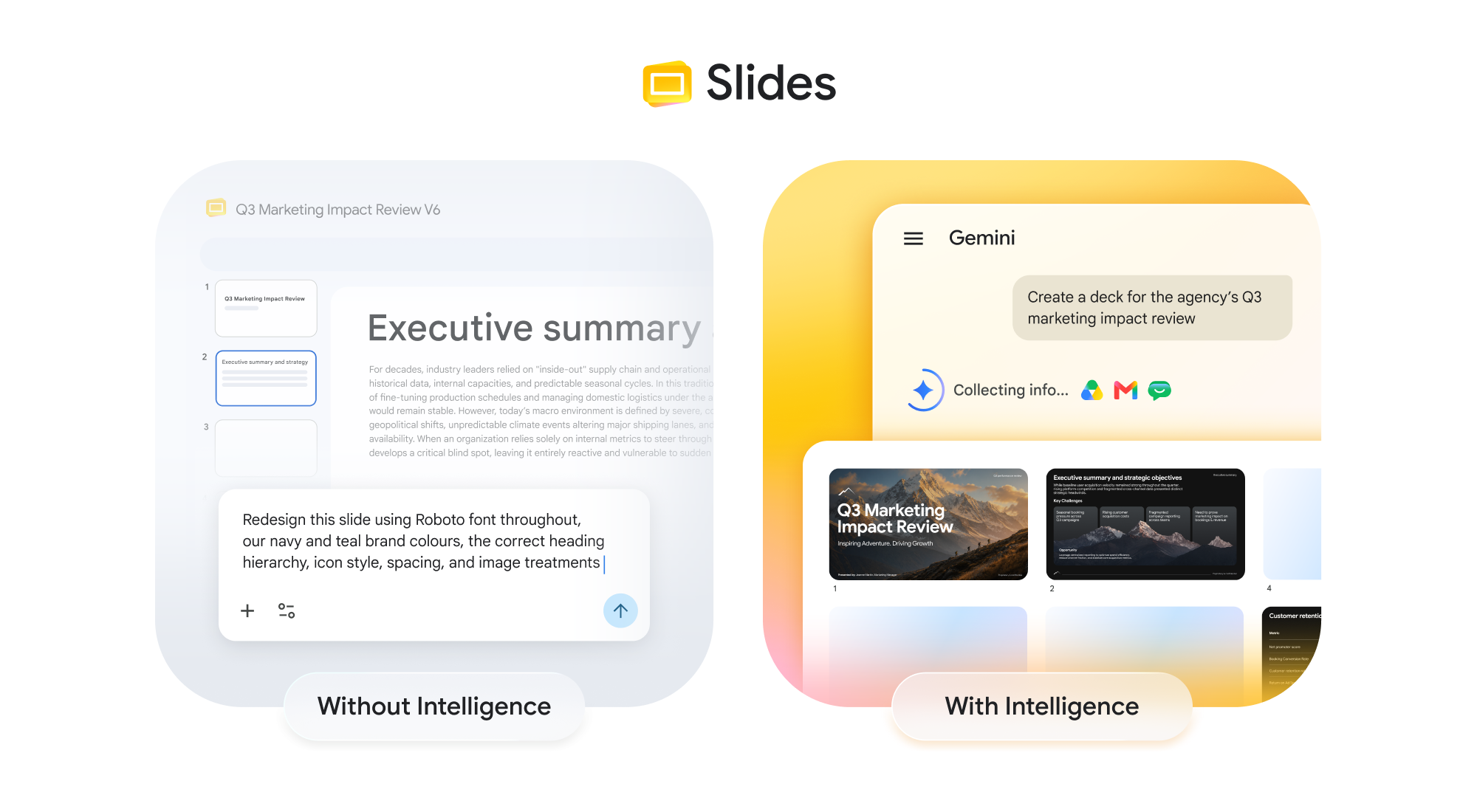
Get slides that align to your existing presentations as Gemini pulls in relevant context.
6. Sheets: Turn scattered data into organized spreadsheets
Before: Spending hours copying numbers, writing complex formulas, and fixing calculation errors to build spreadsheets from the ground up.
After: Effortlessly build a spreadsheet with natural language capabilities. Gemini uses the context from your files and Workspace apps to build live, fully editable tables with native formulas you can easily tweak.

Skip the copying and pasting and build fully formatted tables from scratch.
How Workspace Intelligence works behind the scenes
You don't need to be an expert in prompting or install plugins. Workspace Intelligence works securely and automatically using four key elements:
- Information gathering: It gathers background details across your apps, assembling the full story behind every project, so you have what you need when you take action.
- Situational awareness: It understands what is most important to your work right now based on who you work with and what projects are in flight, bringing urgent tasks to your attention.
- True personalization: It learns your role and working relationships, as well as your unique work style, writing voice, and formatting preferences from past work.
- No setup required: It works right out of the box. You or your IT admin don't need to configure connectors or adjust settings, allowing you to get started immediately.
Enterprise-grade security, privacy, and control built in
When Workspace Intelligence accesses your organization's information to generate responses, it adheres to strict security and privacy commitments and controls:
- Your data is your data: Your content is not sold, used for ads, or used to train Gemini models without permission.
- Existing permissions apply: Gemini only accesses data you already have permission to view. If you can't open a file, neither can Workspace Intelligence.
- Control source types: Administrators maintain full control over Workspace Intelligence. You can enable or disable specific Workspace services (Gmail, Drive, Calendar, or Chat) from being actively searched by Gemini. Administrators can also apply client-side encryption to specific data types or organizational units to restrict any AI system from accessing your organization's most confidential data.
Get started today
Workspace Intelligence can help you save time and focus on what matters most. Start with a simple prompt to see how your apps can do a lot of the heavy lifting for you.
If you’re ready to explore what Google Workspace with Gemini can do for your organization, start a trial today or contact sales to experience the future of boundless work.
If you’re already using Workspace, check out the AI learning for work page for new and popular resources to see how you can bring smart AI workflows to your team. Check out how to scale your team’s AI proficiency in under an hour with AI Boost Bootcamp: How to Use Gemini at Work 101 and 201 role-based training.
*Coming soon to business users.