11 tips to help teams work smarter with Gemini
Deanne Chen
Google Workspace with Gemini Product Marketing Manager
Try Google Workspace at No Cost
Get a business email, all the storage you need, video conferencing, and more.
SIGN UPAchieving breakthrough performance with AI isn’t just about working faster. Successful businesses use AI to move beyond efficiency, and refocus the time savings on innovation and creating value (such as shipping better products and services). For example, organizations that are highly transformed by AI see a 2x improvement in creativity and focus compared to organizations in the initial stages.
So how does an organization become highly transformed by AI? A critical step is enabling your teams and employees to get hands-on and integrate AI into daily work in useful ways. To help you accelerate your organization’s AI education journey, we created Introduction to Gemini at Work: A Practical Guide.
A successful AI transformation needs a clear adoption strategy and a pilot program that integrates learning resources and best practices. Sharing actionable tips for Google Workspace with Gemini enables your teams to discover high-impact AI use cases that drive your organization forward and achieve tangible business outcomes. For example, a customer experience team that learns to use Google Workspace with Gemini to draft client emails and refine their documentation can both increase their capacity for strategic work and raise the bar on the overall customer experience.
To help your teams explore high-impact use cases, we’re sharing 11 tips below. For the complete list, check out the full guide.
AI fluency basics
1. It all starts with AI prompting

How to apply prompting best practices.
Great answers from Gemini start with great prompts (how you start the conversation with your AI-powered assistant). This is foundational for any team looking to start learning AI skills at work. To get the most relevant results in the Gemini app and NotebookLM, try to always include:
- Persona: Who is Gemini acting as?
- Task: What exactly do you need done?
- Context: What details or documents should it use?
- Format: Do you want a table, bullet points, an email, or something else?
Here is an example using all four areas: You are a professional business analyst. [Persona] Summarize the main action items from this week’s project updates. [Task] Focus on items that require immediate attention from leadership. [Context] Provide the response as a three-bullet executive summary. [Format]
2. Bad at prompting? Improve your prompts with Gemini.
If your teams are struggling to write a comprehensive prompt, they still have good options. For example, they can ask Gemini: "Make this a power prompt: [original prompt text here]". Gemini will make suggestions on how to improve the prompt.
Generally the more detail the prompt has, the better. If writing prompts continues to be challenging, in some scenarios teams can ask Gemini quick questions directly in Workspace apps like Gmail, Docs, and Sheets (responses are grounded in the context of the app you’re in). To get an even better answer, they can reference other files from Drive to reinforce the context.
Using Gemini to deliver your next project
No matter the project, every knowledge worker encounters the same tasks: strategize or plan, create presentations, run meetings, and communicate across teams to deliver results.
Here’s how Gemini can help with each of these project phases:
First phase: strategize and plan
3. Make sense of scattered information with NotebookLM
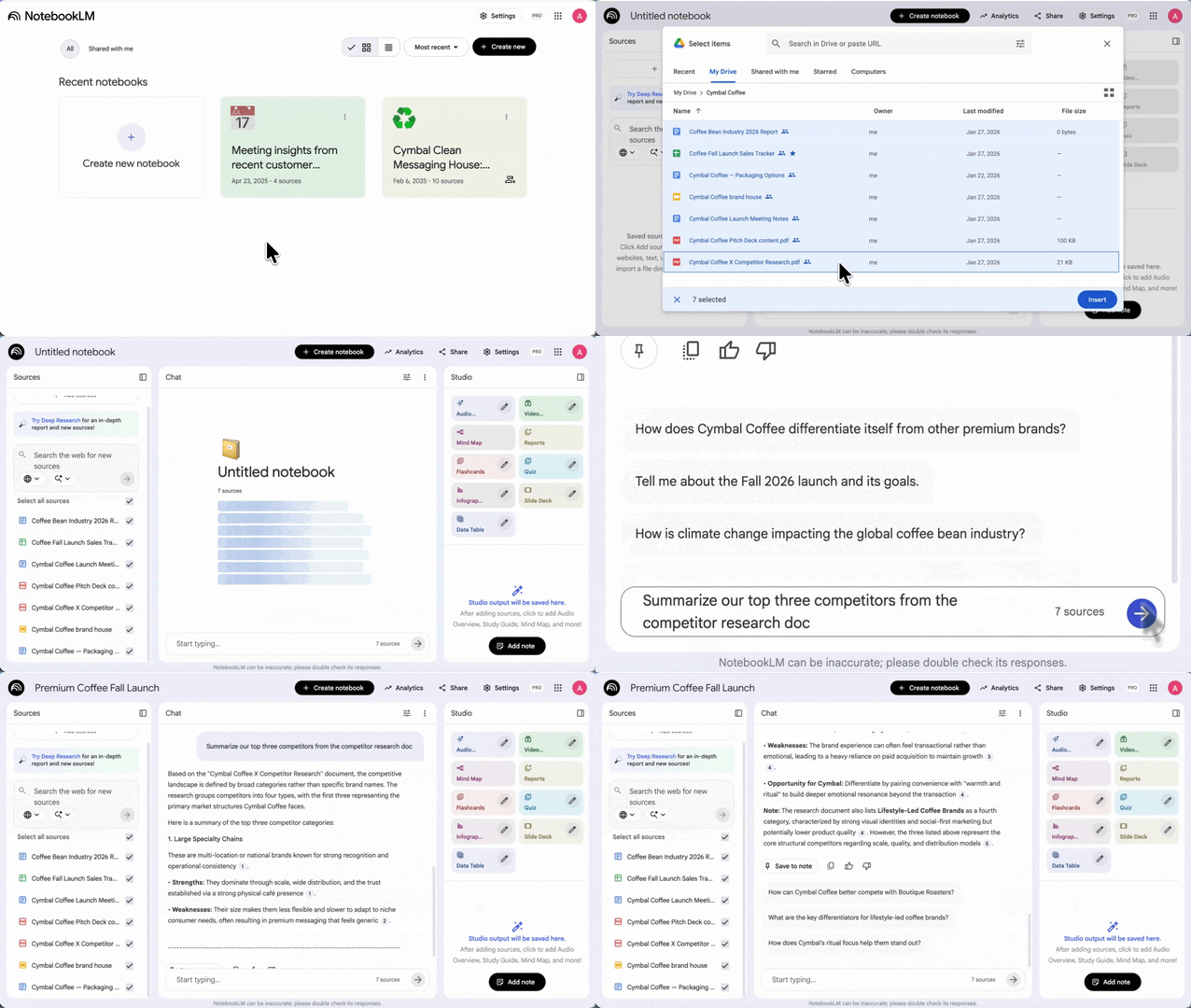
Synthesize research and share knowledge with NotebookLM.
Instead of employees spending hours digging through technical manuals or hundreds of pages of research, they can upload them to NotebookLM. Just ask, "What are the 5 most common themes across these customer interviews?" to extract key insights instantly. This accelerates research, speeds up the decision-making process, and even helps entire teams get their questions answered, instantly.
4. Draft project briefs in seconds in Docs
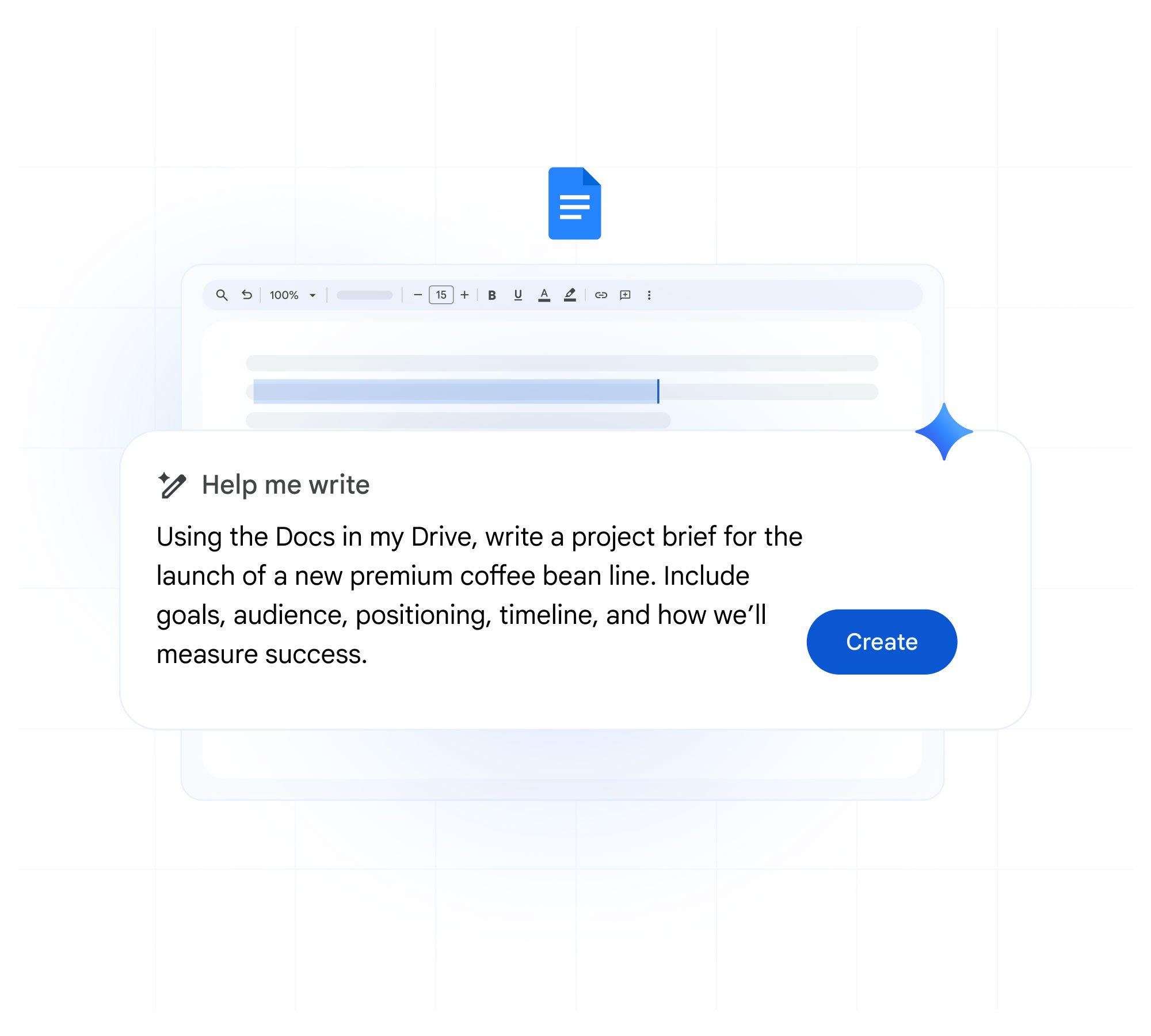
Instantly draft a project brief with Gemini in Google Docs.
Empower your teams to use Gemini in Docs to go from a blank page to a polished proposal. You can even prompt it to use specific files in your Drive to ensure the brief is grounded in your organization’s existing research and historic data.
5. Organize data into trackers in Sheets
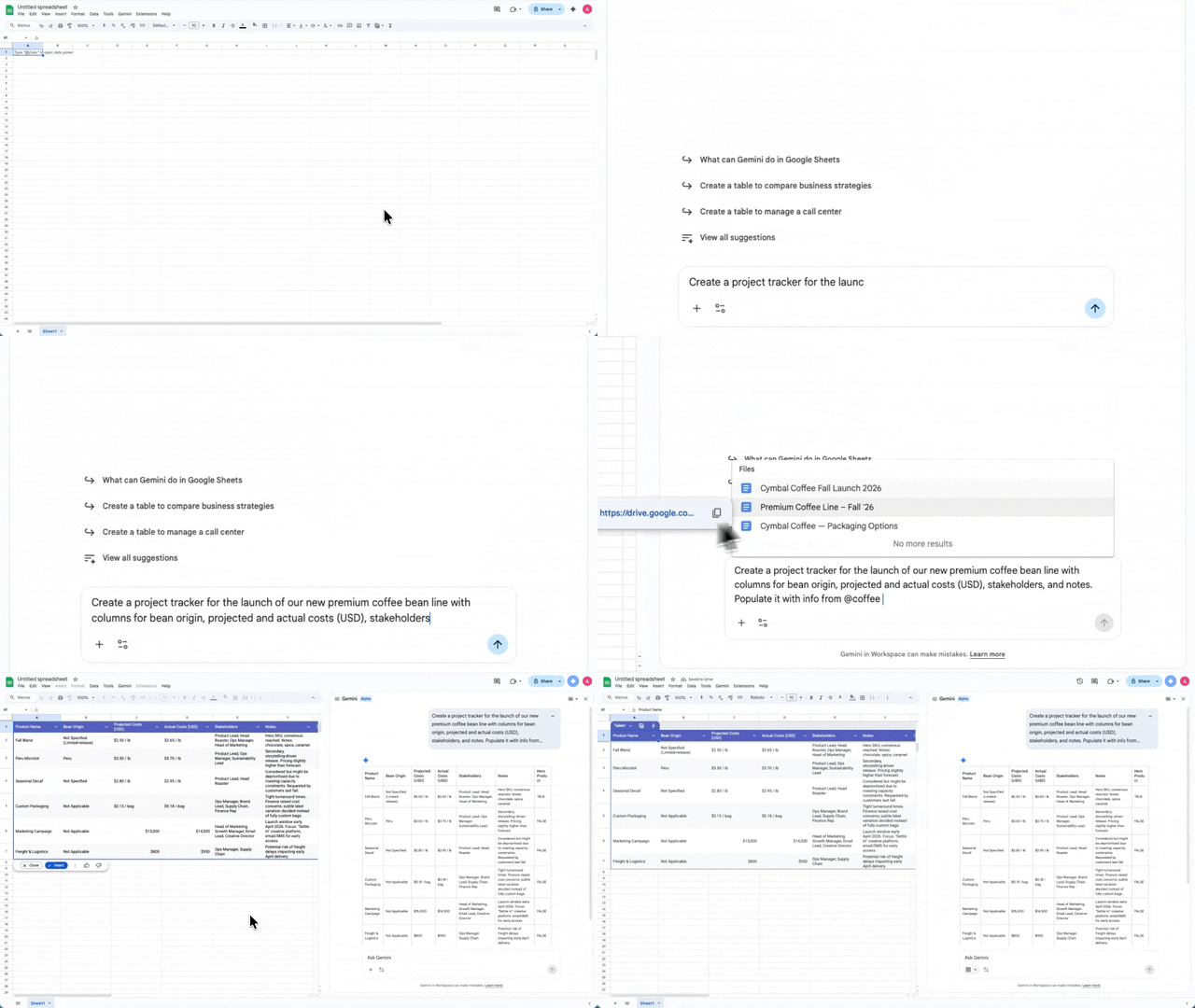
Create a chart from a prompt using Gemini in Sheets.
Tired of formatting tables in Google Sheets? The days of building tables from scratch are over. In Sheets, Gemini can instantly create organized project trackers with columns for timelines, stakeholders, and risk assessments based on a simple description, allowing project owners to focus on execution rather than administration
Second phase: create compelling presentations
6. Create high-impact custom visuals in Slides
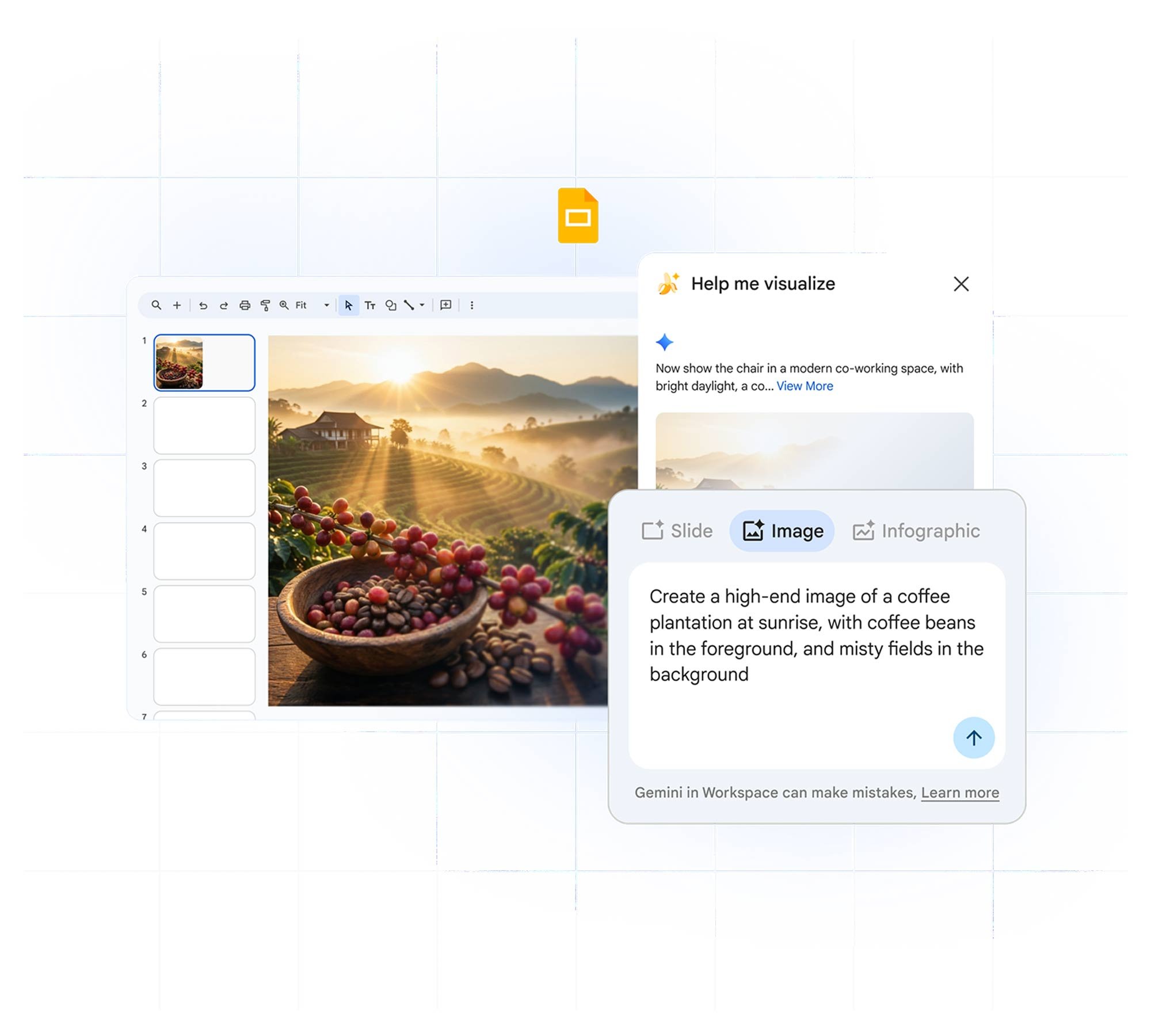
Use “Help me visualize” in Slides to create unique images.
Save time searching for stock photos by using the Gemini app or Slides to generate unique, high-quality images from a simple text description. This helps improve all presentations in your organization, keeping them engaging and tailored to the message.
7. Polish presentations in a fraction of the time

Get a design upgrade with Nano Banana Pro in Slides.
No more spending hours formatting slides. Help teams gain valuable time back and improve their presentations by using the Nano Banana Pro feature in Slides to Beautify this slide. The result is an instant slide design upgrade while keeping the original text and message intact.
Third phase: Get aligned with productive meetings
8. Before the meeting: streamline scheduling in Gmail

Use Help me schedule in Gmail to propose free times.
Instead of switching between Calendar and Gmail, your teams can use Help me schedule right inside of Gmail to find and offer time availability right from an email draft. This makes coordination easier, especially when interacting with external partners or clients whose calendars aren't visible.
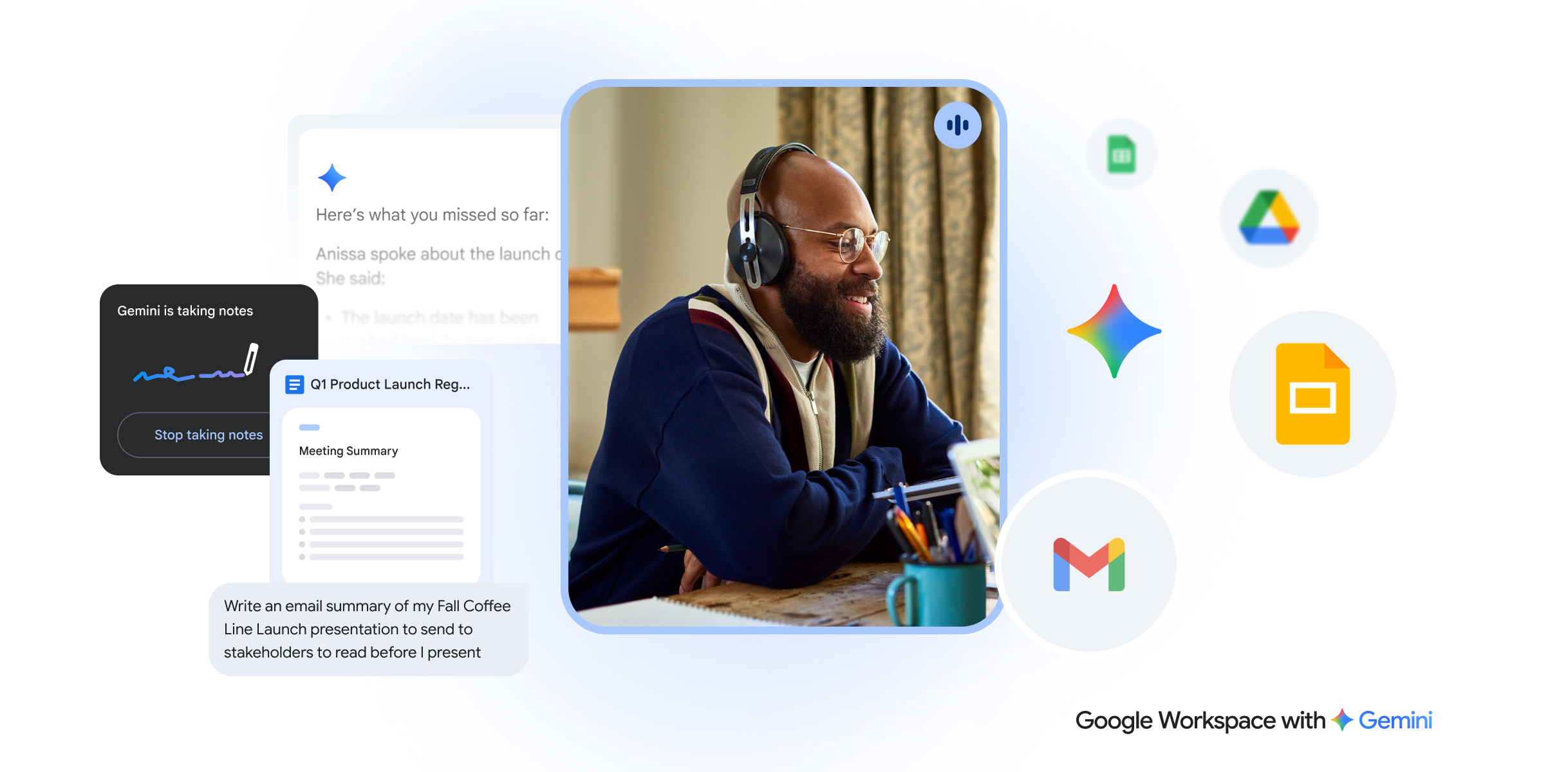
9. During and after the meeting: stay focused and let Gemini take notes

Let Gemini take notes for you in Google Meet.
Help your teams stay present and focused on the conversation, not the typing. Let Gemini take meeting notes in Google Meet, then identify action items and key decisions in a follow-up email.
10. During the meeting: catch up instantly if you're late

Ask for a summary privately with Ask Gemini in Meet.
Leaders and many team members often jump between back-to-back calls. If someone joins the meeting late, they can Ask Gemini in Meet for a summary of what has been discussed so far. The best part is they can catch up without disrupting the flow of the meeting for the rest of the team.
And if anyone is distracted (it happens to all of us, we’re human after all!) they can privately ask a question about what they missed. Ask Gemini in Meet responses are only visible to you.
Fourth phase: communicate effectively to keep your project on track
11. Draft professional emails and refine your tone

Use Gemini in Gmail to help you draft different phrasing.
Gemini makes it easy to keep your team’s emails professional and to the point. Employees can use Gemini in Gmail to draft clear updates to leadership or vendors. And if a message is sensitive, ask Gemini to brainstorm different ways to phrase it to ensure it lands with the right impact.
Pro tip: Use Gems to scale team expertise and productivity

Create Gems to act as custom AI experts.
Instead of retyping the same lengthy prompts, teams can create a custom Gem for specific, repetitive tasks. They can build specialized Gems like an "Email Drafter" or "Social Media Guru" that are trained on your specific brand voice and data. Then, they can share Gems across teams to ensure consistency and save time at scale.
By automating manual tasks like building trackers, formatting slides, or striking the right tone for communications, Gemini removes the friction from every phase of the project lifecycle. This empowers your teams to reclaim their time and focus on the high-value strategic work that drives real business results.
Ready to save time and work smarter? Share the "Introduction to Gemini at Work" guide with your organization today.